Quick answer: What’s the best Mac screenshot tool for redacting sensitive data?
For Mac users who regularly share screenshots across team chats, GitHub PRs, ticket systems, or public documentation, the most secure workflow is using a tool that automatically identifies common secrets (such as emails, passwords, API keys, tokens, and customer PII) and applies solid opaque blocks on-device before the image reaches your clipboard.
ScreenLeX is designed specifically around this credential-heavy workflow. While general-purpose tools like CleanShot X, Shottr, and macOS Preview offer robust manual shapes or blur brushes, they do not provide automated scanning for confidential fields out of the box. Use native manual tools if you rarely touch sensitive screens, and adopt an automated on-device redaction tool when credentials appear daily. Even with automated assistance, a quick final visual check is always recommended.
What “auto-hide / redact sensitive data” actually means on macOS
Redaction is frequently mischaracterized as a post-capture chore—manually drawing boxes or dragging mosaic brushes over an image after it has been captured.
True automated redaction on macOS introduces two structural safeguards:
- On-Image Pattern & OCR Detection: When a screen region is captured, local recognition models parse text to spot high-risk entities (API keys, authorization tokens, database strings, email addresses, and phone numbers).
- Pre-Clipboard Interception: The tool overlays solid, opaque fills directly over recognized patterns before the capture enters your system clipboard or writes to storage.
Automated redaction shifts secret management from fallible human memory to an automated safety gateway.
Leak surfaces unique to Mac screenshots
While full-screen recording poses obvious hazards, static Mac screenshots leak confidential context through subtle interface elements:
- Notification Previews: macOS notification banners from Slack, Messages, or Mail can fire mid-capture in the top-right corner, exposing private direct messages or verification codes.
- Browser Tabs & URLs: Visible tabs often reveal internal staging hosts, active query parameters containing auth tokens, or customer identifiers.
- Menu Bar Status: The system status bar may expose corporate VPN endpoints, internal enterprise tools, or your primary Apple ID / corporate email address.
- Background Windows: Staggered application windows can inadvertently expose open terminals, chat channels, or local
.envfiles right behind your target window. - Image Metadata: Screen captures may retain color profiles and display metadata that reveal internal environment specifications.
Why blur and manual Markup often fail
Many workflows rely on built-in macOS tools or light mosaic brushes. From a security perspective, this introduces significant risks:
- Pixelation and Blurring Are Often Reversible: Standard Gaussian blur and pixelation filters do not destroy pixel information; they average it mathematically across blocks. Security research—such as Bishop Fox's Unredacter project—demonstrates that pixelated and blurred text can often be programmatically reconstructed by comparing candidate character glyphs against known font layouts.
- Fatigue Leads to Leaks: During high-stress incident responses or tight deadlines, engineers focus on diagnosis rather than hunting down tokens. In a dense 50-line terminal output, missing a single credential is easy.
- Native Markup Lacks Context: macOS Preview and Markup treat text as inert pixels; every redaction box must be hand-drawn, resized, and filled manually.
(For occasional manual masking without third-party utilities, refer to our walkthrough on how to manually redact screenshots on Mac using Preview and Markup.)
Best Mac tools for redacting / hiding sensitive data
Below is an objective comparison of Mac tools across automated detection, credential protection, and workflow integration.
Feature comparison: Redaction workflows on macOS
Note: Competitor capabilities reflect public feature sets at the time of writing; always verify exact version support directly.
| Tool | Automated PII / Secret Detection | API Key & Credential Recognition | Masking Method | Processing Architecture | Capture + Canvas + Translation | Target Use Case & Model |
|---|---|---|---|---|---|---|
| ScreenLeX | Supported (configurable pattern categories) | Supported (heuristic & pattern matching) | Solid opaque fills (baked into bitmap) | Local on-device (Apple Vision / Core ML) | Yes (capture, beautify, OCR translate) | Developers & support handling sensitive data (Early Access) |
| CleanShot X | Manual only (no auto-detection claimed) | Manual only (user spots secrets) | Manual solid shapes / blur | Local image rendering | Yes (screen capture, scrolling, recording) | All-in-one general macOS capture suite (Paid license) |
| Shottr | Manual only (no auto-detection claimed) | Manual only (user spots secrets) | Manual erase / pixelate | Local lightweight binary | No (focused on pixel inspection & measurement) | Fast, lightweight capture utility (Free / Paid) |
| Xnapper | Manual only (no auto-detection claimed) | Manual only (user spots secrets) | Manual overlay shapes | Local image rendering | Yes (focused on social media styling) | Polished visuals for social media sharing (Paid license) |
| macOS Preview | None (manual drawing only) | None (manual drawing only) | Manual solid rectangle fill | Built-in native utility | No (system viewer/editor only) | Low-frequency, ad-hoc edits (Free built-in) |
In-depth tool breakdown
1. ScreenLeX: Automated credential isolation
ScreenLeX combines screen capture with proactive data loss prevention:
- Targeted Detection: Scans for standard credential structures and PII, including email addresses, phone numbers, payment card sequences, API keys, tokens, IDs, and avatars.
- On-Device Execution: Text processing and entity recognition run locally on your Mac using native macOS frameworks, preventing raw image data from leaving your machine.
- Pre-Clipboard Masking: High-opacity blocks are baked directly into the flattened bitmap prior to clipboard copying, reducing accidental paste leaks in communication apps.
2. CleanShot X: The comprehensive capture benchmark
CleanShot X remains an industry standard for screen recording, scrolling captures, and floating overlays. For redacting content, users can manually apply blur or draw solid shapes. While highly versatile for visual documentation, detection remains entirely manual.
3. Shottr: Lightweight pixel editing
Shottr provides fast startup times and minimal resource overhead. Its manual erase and pixelation features work well for simple cosmetic cleanups, though it is not built to scan or isolate secrets automatically.
4. Xnapper: Clean presentation backgrounds
Xnapper automates visual presentation by centering captures on balanced background gradients. It is tuned for marketing and social media posts rather than auditing developer environments or internal tickets.
Before / after: What solid auto-redaction looks like
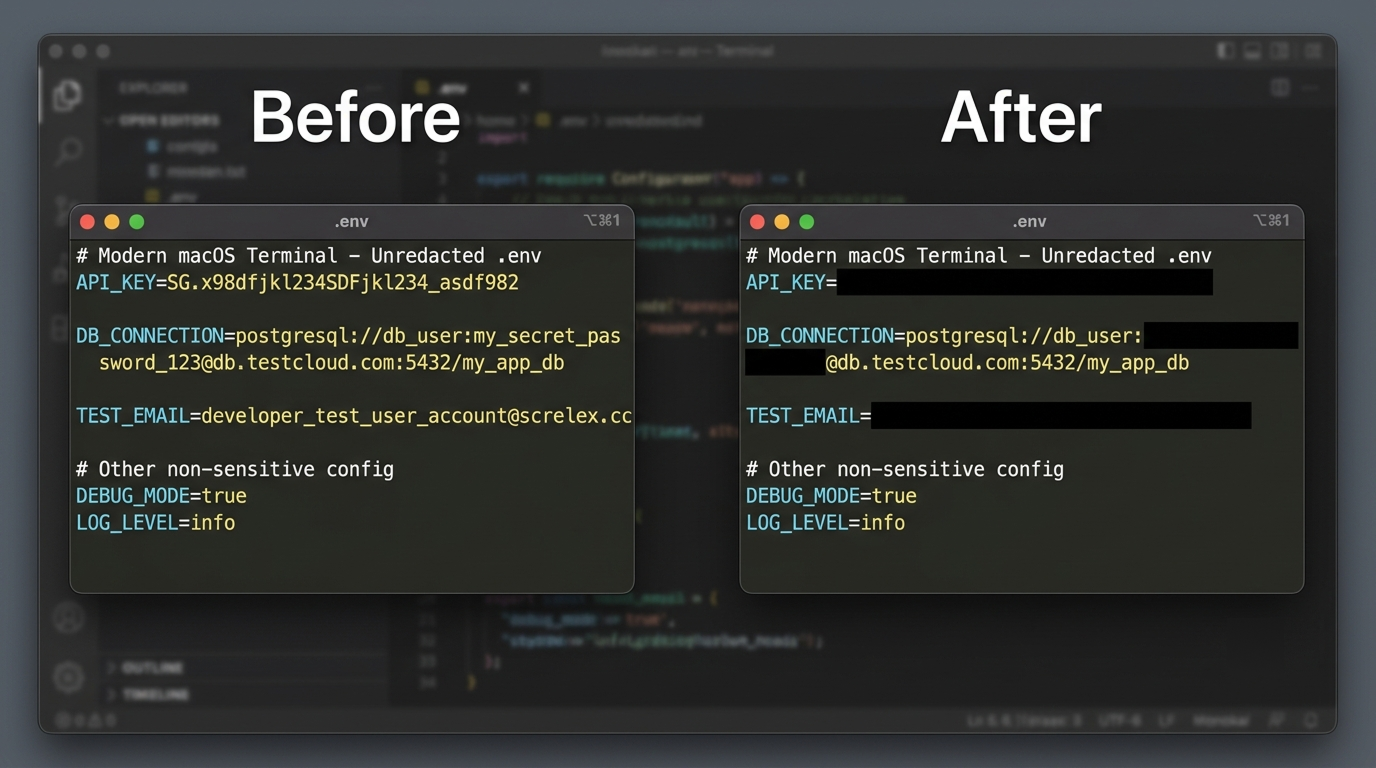
Figure 1: Comparison of an unredacted terminal environment file versus automated solid-block masking in ScreenLeX. Select the image to view it at full size.
Visual Example Note: Solid auto-redaction covers detected credential strings with high-contrast, opaque geometric fills directly in the rasterized image layer. Unlike Gaussian or mosaic blur, solid pixel fills leave zero residual gradient data for deconvolution tools to reconstruct.
Who needs automated screenshot redaction?
- Engineers & DevOps: Sharing terminal logs,
.envconfigurations, and pull requests without leaking active tokens. For specific developer setups, see our developer screenshot workflow guide. - Customer Support & Success: Forwarding CRM records and billing tickets while maintaining compliance with privacy standards by masking customer contact and payment details.
- Documentation & Technical Writing: Producing training materials from live environments without generating dedicated sanitized staging accounts.
When to use Preview vs. an automated redaction tool
- Occasional single-item masking: If you need to obscure an order number once or twice a month, macOS Preview's manual solid rectangle is completely sufficient.
- Daily technical and customer collaboration: If you frequently capture terminals, database outputs, Postman runs, or customer dashboards, an automated tool eliminates manual overhead and prevents accidental data exposure.
👉 Get Early Access to ScreenLeX
FAQ
What Mac apps automatically hide confidential information in screenshots?
Apps that automatically hide confidential data combine local character recognition with pre-share masking. ScreenLeX runs detection locally on macOS, automatically covering detected emails, phone numbers, payment card numbers, API keys/tokens, and avatars with solid fills. Standard tools like CleanShot X or Shottr provide manual blur brushes, leaving secret detection to the user.
Can a Mac screenshot editor hide passwords and API keys?
Yes—either manually or automatically. In standard editors like macOS Preview or CleanShot X, you must spot the secret yourself and draw an opaque box over it. With ScreenLeX, the editor automatically recognizes standard key patterns and masks them with solid fills. Always avoid using light blur or mosaic filters on passwords, as blur patterns can often be digitally reconstructed.
What’s the best Mac screenshot tool for redacting sensitive data?
The best tool is one that catches secrets automatically on-device, applies solid blocks before the screenshot touches your clipboard, and processes everything locally without sending your confidential data to third-party servers. ScreenLeX is designed specifically for this workflow.
CleanShot X vs. auto-redact tools: Which should I use?
Use CleanShot X if your primary requirements are screen recording, scrolling capture, and manual annotation. Use an automated redaction tool like ScreenLeX if you frequently handle terminal sessions, database interfaces, API keys, or customer support tickets where missing a single confidential string creates a security vulnerability. For an in-depth breakdown, read our ScreenLeX vs. CleanShot X comparison.
Can blurred text in a screenshot be unblurred?
Yes. Standard Gaussian blur and pixelation algorithms preserve localized color distribution and mathematical pixel relationships. Security research, such as Bishop Fox's Unredacter, has demonstrated that pixelated text can be recovered by evaluating candidate glyphs against the affected area. For truly sensitive data, solid, opaque blackout blocks are mandatory.
Does macOS have built-in automatic redaction?
No. macOS includes Markup within Preview and the native screenshot utility (Cmd+Shift+4 / Cmd+Shift+5), but these tools only offer manual drawing shapes (such as solid rectangles). They do not scan or automatically detect confidential text strings.